
Ever found yourself in a battle with your iPhone’s clipboard, wondering where all those copied texts went? You’re not alone. The clipboard can feel like a secret vault, hiding your copied gems from plain sight. But fear not! This guide’s here to help you unlock that treasure trove of copied content.
Understanding Clipboard Functionality
Clipboard functionality on the iPhone provides users with a temporary space to store copied text and images. Knowing how it operates is crucial for effective content management.
What Is a Clipboard?
Clipboard acts as a digital storage area that holds items temporarily. Users can copy text snippets, images, or links and paste them elsewhere on their devices. Data transfer becomes seamless when using this feature. It serves as a bridge between different applications while facilitating quick sharing of information. Clipboard data typically disappears after rebooting the device or copying new items.
How Clipboard Works on iPhone
Clipboard stores copied content in the background, allowing for easy access and transfer between apps. When a user copies an item, it’s saved until a new item is copied. Pasting occurs by simply tapping and holding in a text field. iPhones manage clipboard data automatically, without requiring manual intervention. Users do not see a visual representation of their clipboard contents directly. They only experience the function when copying or pasting content.
Viewing Your Clipboard on iPhone
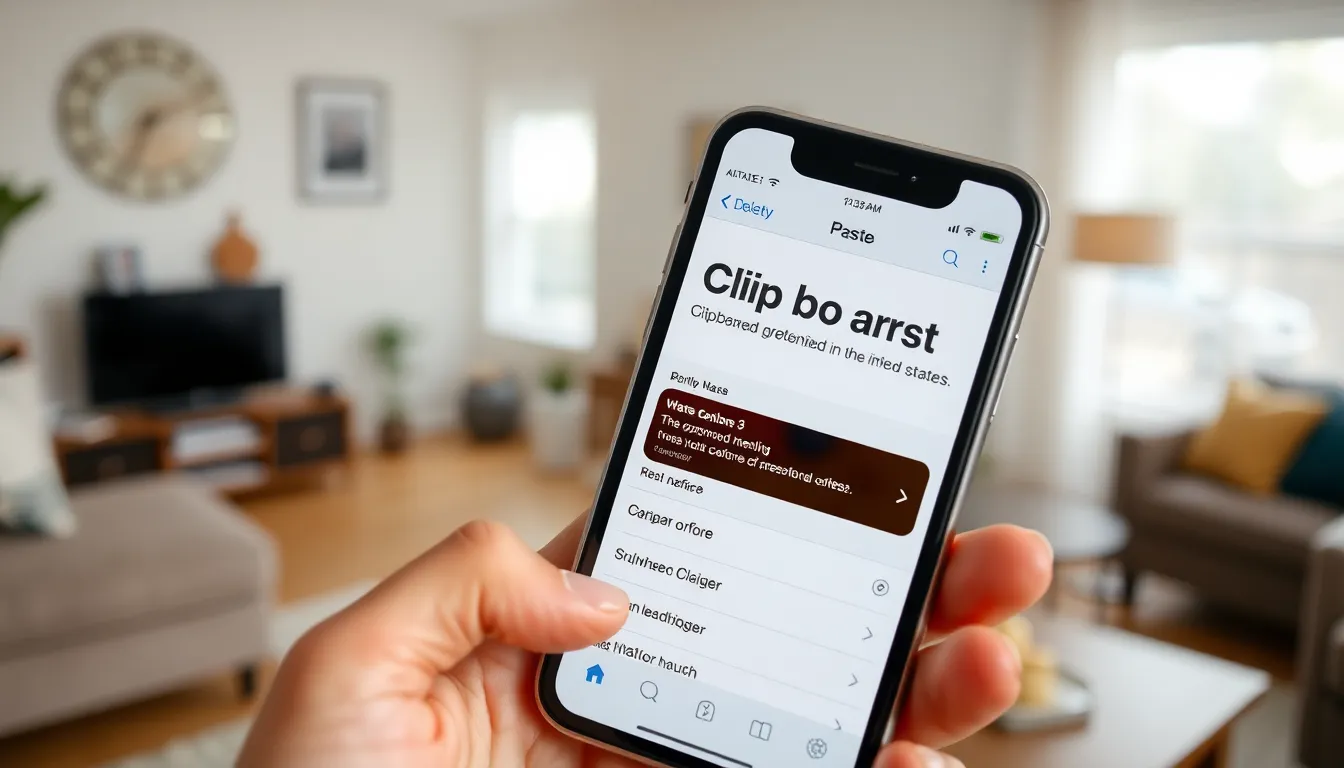
Users can access clipboard content on their iPhone with ease. Two primary methods exist: built-in features and third-party applications.
Accessing Clipboard Using Built-in Features
To view clipboard items, open any app that allows text input. Long press in the text field until the paste menu appears. Selecting “Paste” reveals the most recent copied item, allowing users to insert it. This method works seamlessly across various applications, including Messages and Notes. The function supports text and image pasting, making it versatile for different needs. Remember, this only shows the last item copied, as the clipboard does not store a history of previous items.
Third-Party Applications for Clipboard Management
For users seeking more control, third-party applications offer clipboard management solutions. Apps like Paste and Copied provide features to view clipboard history. Users can save multiple items and organize them for future use. Some apps even sync across devices, enhancing accessibility. Most of these applications also support additional formats, such as images and URLs. Installing one of these options expands clipboard functionality on the iPhone, making it easier to manage copied content effectively.
Tips for Managing Your Clipboard
Managing your clipboard effectively enhances productivity and ensures data security. Utilizing best practices can make a significant difference.
Best Practices for Clipboard Safety
Clipboard safety is crucial, especially when handling sensitive information. Avoid storing private credentials or personal data directly on the clipboard for long periods. Clear clipboard history regularly, particularly after copying sensitive items. Enable biometric security on apps when working with critical information, as it adds an extra layer of protection. Use trusted third-party clipboard managers with built-in encryption features. By applying these practices, users reduce exposure to potential risks.
Useful Features of Clipboard Managers
Clipboard managers offer valuable features for users looking to enhance their clipboard experience. Many allow for storing multiple copied items, providing easy access to recent history. User-friendly interfaces enable effortless organization of saved clips, often allowing labels for quick identification. Some clipboard managers include the ability to sync across devices, making information accessible anywhere. Advanced features may support various formats, allowing users to share text, images, and links seamlessly. By using clipboard managers, individuals streamline their workflows.
Understanding how to access and manage the clipboard on an iPhone can significantly enhance productivity. By utilizing built-in features or third-party applications users can easily view and organize their copied content. This not only streamlines workflows but also ensures that sensitive information is handled securely.
With the right tools and practices users can take full advantage of their clipboard’s capabilities. Whether it’s for personal use or professional tasks knowing how to effectively manage clipboard data makes a noticeable difference in everyday tasks. Embracing these methods will lead to a smoother and more efficient experience on the iPhone.