
Ever looked at your iPhone screen and thought, “Did I accidentally step into a Picasso painting?” Colors can sometimes go rogue, leaving users scratching their heads and wondering if their phone’s been possessed by a mischievous artist. But don’t worry, fixing those funky colors is easier than finding a cat video on the internet.
Understanding Color Issues on iPhone
Color issues on iPhone screens can lead to distorted images and an unsatisfactory user experience. Identifying these problems can help users restore their device to its normal functioning.
Common Symptoms of Color Problems
Users often report washed-out colors, which give images a faded appearance. Another symptom includes overly saturated colors, where hues appear unnaturally vivid. Additionally, some may notice a bluish or yellow tint dominating the screen. In some cases, users observe color inversion, making colors appear swapped. Many users experience inconsistencies in color during video playback or photo viewing as well.
Potential Causes of Color Issues
Several factors contribute to color issues on iPhones. Software updates sometimes alter display settings unexpectedly. Restoring factory settings can influence color calibration, resulting in discrepancies. Also, hardware damage, such as cracked screens or faulty connections, often leads to color distortion. Device settings like Night Shift or color filters could unintentionally cause unusual hues as well. Finally, cases or screen protectors may interfere with display clarity, affecting perceived colors.
Methods to Fix Color on iPhone
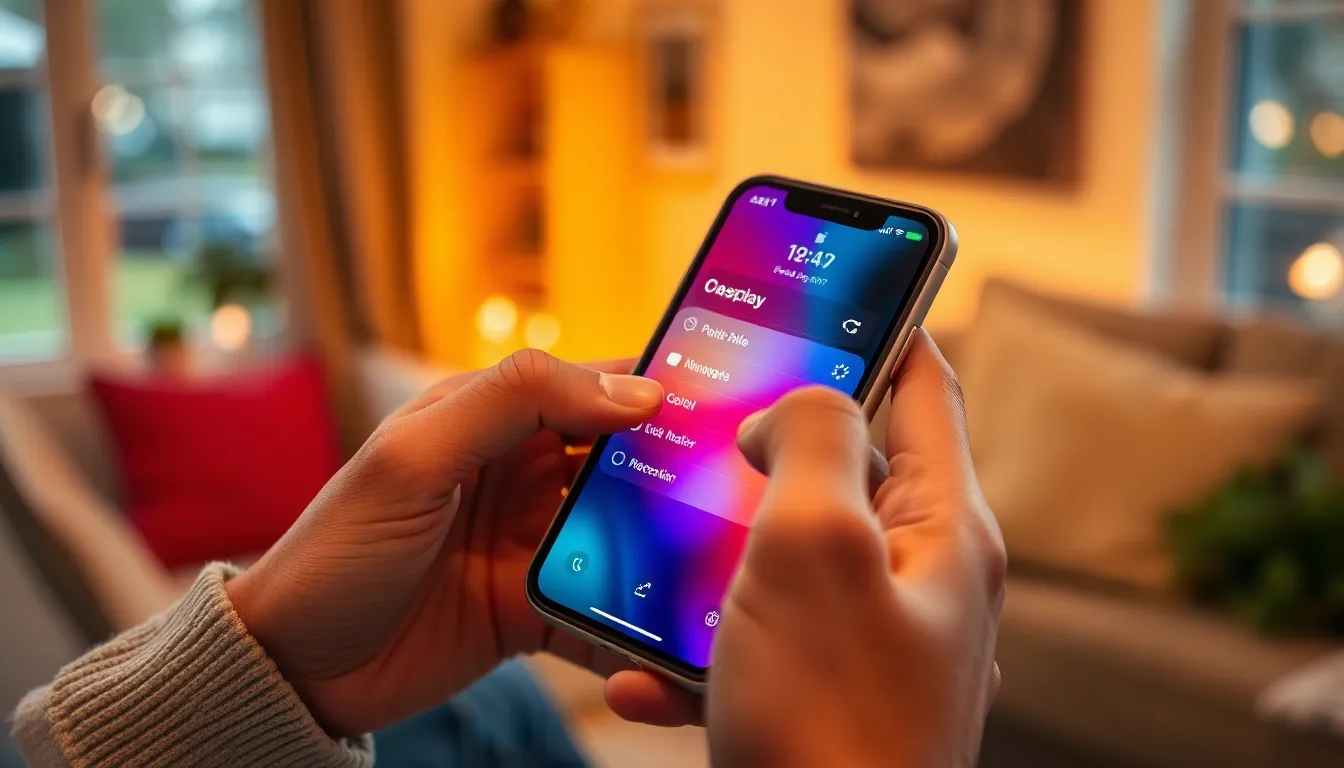
Users can effectively address color issues on their iPhones by implementing various methods. Each technique targets specific problems to restore optimal color display.
Adjusting Display Settings
Display settings adjustments can often restore accurate colors. Users should access Settings and select Display & Brightness. From there, they can toggle Night Shift on or off to see if this affects color perception. Additionally, enabling or disabling True Tone may also help. These features enhance display warmth, which may distort colors if misconfigured.
Calibrating Color Balance
Color balance calibration allows users to achieve a harmonious display. Navigate to Settings, then Accessibility, and select Display Accommodations. Choose Color Filters to enable color balance adjustments. Users can experiment with different filters based on color vision. This feature assists in correcting tints that appear distorted, enhancing overall viewing quality.
Resetting All Settings
Resetting all settings can eliminate persistent color issues. This action restores device settings to default without erasing personal data. To reset, go to Settings, select General, then Transfer or Reset iPhone, and choose Reset All Settings. Users may need to re-enter Wi-Fi passwords and adjust preferences. This method often resolves deep-rooted software glitches affecting color display.
Using Accessibility Features
Accessibility features on the iPhone provide tools to address color display issues effectively. These settings help users adjust their screens for a more satisfying visual experience.
Color Filters Options
Color filters give users the ability to modify their display colors based on specific needs. Navigate to Settings, then Accessibility, and find Display & Text Size. From there, locate the Color Filters option. Toggle on the color filters and choose from various presets, such as Grayscale, Red/Green Filter, and other commonly used color settings. Each option adjusts color tones, helping to mitigate issues like color blindness or perceived distortion. Experimenting with these filters can yield optimal results tailored to individual preferences.
Enabling Grayscale Mode
To enable Grayscale mode, accessing the Color Filters menu is essential. This setting simplifies the color palette, providing a black and white display. After toggling Color Filters on, select Grayscale to activate the mode. Grayscale offers a clear contrast that enhances visibility and can help users who struggle with vibrant colors. Activating this mode provides instant relief from overly saturated hues or distorted colors, making interactions more comfortable. Adjust the grayscale intensity through the settings for further customization if necessary.
When to Seek Professional Help
Color display issues may indicate underlying problems that require professional intervention. Users should consider seeking help if basic troubleshooting doesn’t restore color accuracy.
Identifying Hardware Issues
Physical damage to the device can lead to color distortion. Check for cracks or bends on the screen, as such damage often impacts display quality. Additionally, replaceable components, like the display assembly, can fail. If visual anomalies consistently occur, hardware issues may exist beyond typical software glitches. Testing the iPhone on another device can help confirm whether the problem lies within the iPhone itself.
Finding Authorized Repair Centers
Locating an authorized repair center ensures proper diagnosis and repair. Apple’s website provides a tool for users to find certified locations based on their area. Authorized centers use genuine parts and are trained to handle various iPhone models. Upon visiting these centers, technicians can perform detailed assessments and recommend suitable solutions. Following this route helps avoid unauthorized repairs that may void warranties or worsen existing issues.
Fixing color issues on an iPhone doesn’t have to be a daunting task. By understanding the various factors that can affect display quality users can take proactive steps to restore their device’s color accuracy. Adjusting settings like Night Shift and True Tone can often yield immediate improvements. For more persistent issues experimenting with Accessibility features or resetting settings may provide the necessary solutions.
However if problems continue to disrupt the user experience it’s wise to seek professional assistance. Authorized repair centers offer the expertise needed to diagnose and resolve hardware issues effectively. With the right approach users can enjoy a vibrant and accurate display once again.