
When that bright iPhone light turns on unexpectedly, it can feel like a mini disco party in your pocket. While it might be fun to show off your phone’s flashlight feature during a camping trip, it’s less exciting when it lights up in the middle of a movie or a quiet meeting. So, how does one tame this glowing beast?
Understanding Your iPhone Light Features
Understanding the various light features on an iPhone enhances user experience and prevents unexpected activations. Several light functionalities exist for specific purposes.
Types of Lights on Your iPhone
The iPhone has a flashlight feature, which provides a bright illumination option for various situations. An LED light serves this function, located on the device’s back. Notifications include a flash that signals incoming messages and alerts. Some users utilize the screen’s brightness adjustment, which also plays a role in visibility. Furthermore, the screen provides a backlight, enhancing usability in different environments. Each light serves distinct functions that contribute to smooth device operation.
Importance of Managing iPhone Light Settings
Managing light settings is crucial for preventing disruptions during important moments. Unexpected flashlight activations can lead to embarrassing situations. Customizing notifications prevents disturbances while ensuring important alerts remain noticeable. Energy conservation also benefits from these management practices since unnecessary light use drains battery life. Adjusting settings enhances comfort while using the device in low-light conditions. Overall, awareness of light features promotes a better user experience and efficient functionality.
How to Turn Off the Flashlight
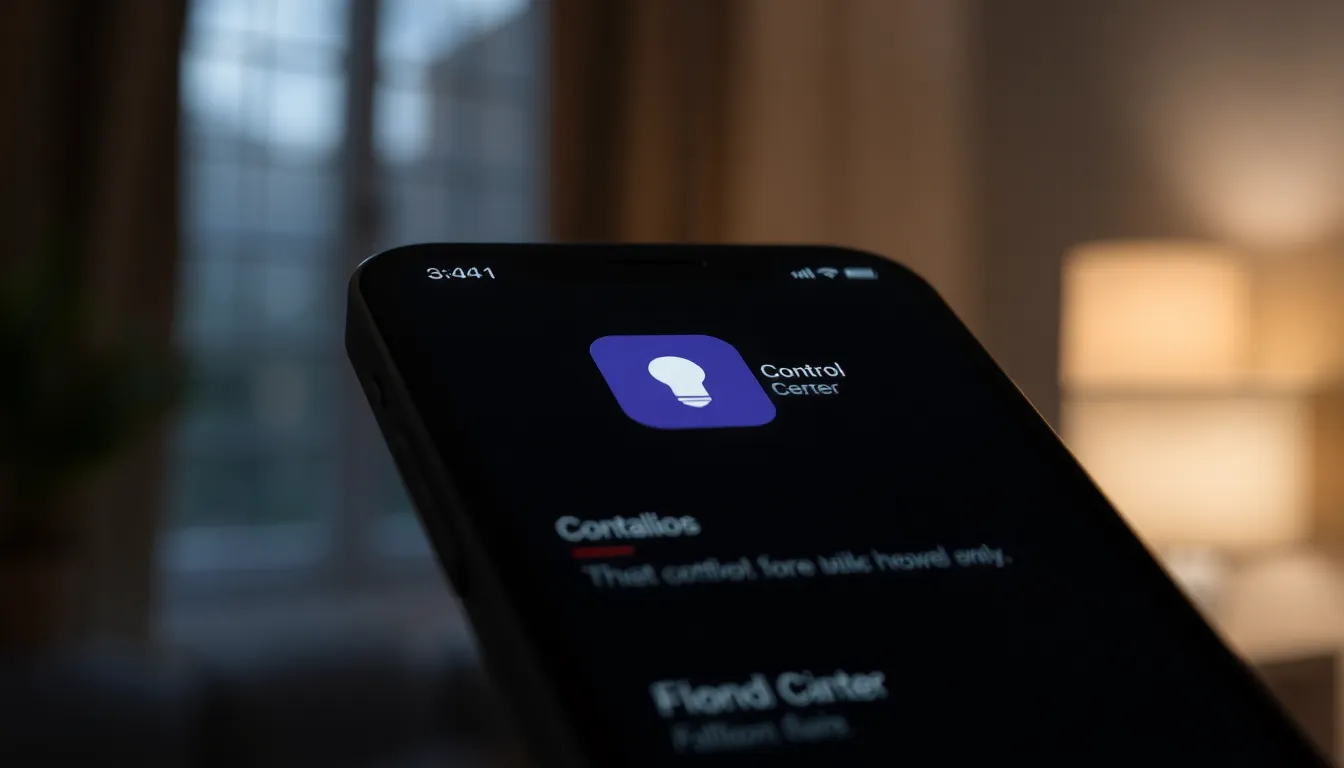
Turning off the iPhone’s flashlight can quickly restore peace in unintended situations. Users often activate this feature accidentally, so knowing how to disable it efficiently offers great relief.
Using Control Center
Access the Control Center by swiping down from the upper-right corner of the screen. Locate the flashlight icon, which resembles a small flashlight. Tapping this icon once immediately turns off the flashlight. If the icon is gray, the flashlight is off. Ensuring that the Control Center is easily reachable simplifies managing flashlight use, especially in dark environments. Alternatively, this feature can also be accessed from the lock screen for a faster response.
Using Siri
Users can turn off the flashlight using Siri for added convenience. Activating Siri requires either holding the side button or saying “Hey Siri.” After activation, simply instruct, “Turn off the flashlight.” Siri processes this request promptly, ensuring the flashlight turns off hands-free. This method suits those who prefer voice commands or need to keep their hands free while multitasking. Utilizing Siri for adjusting flashlight settings fosters a seamless experience on the iPhone.
Turning Off Screen Brightness
Reducing screen brightness helps conserve battery life and enhance viewing comfort. Adjusting brightness settings provides greater control in different environments, allowing users to set optimal lighting.
Adjusting Brightness Settings Manually
Adjust the brightness manually by accessing the Control Center. Swipe down from the upper-right corner. Locate the brightness slider and move it up or down as needed. Users can also go to Settings, then tap Display & Brightness. From there, adjust the brightness slider to the desired level. For those in particularly bright conditions, increasing brightness improves visibility. Conversely, lowering brightness helps in darker environments, reducing eye strain.
Enabling Auto-Brightness Feature
Enable the Auto-Brightness feature for automatic adjustments. Open the Settings app, then navigate to Accessibility. Tap Display & Text Size, and switch on Auto-Brightness. This feature uses ambient light sensors to adjust screen brightness based on surrounding light levels. When conditions change, the iPhone automatically makes adjustments. Using Auto-Brightness enhances user experience, providing appropriate brightness without manual intervention.
Disabling Notifications and LED Alerts
To effectively manage light notifications, disabling LED alerts can significantly reduce disruption.
Turning Off LED Alerts for Notifications
Turning off LED alerts prevents the device from flashing when notifications arrive. Users can find this setting under Accessibility in the iPhone’s Settings app. They should select Audio/Visual, then toggle off the LED Flash for Alerts option. This adjustment eliminates unintended disturbances caused by notifications during meetings or other quiet environments.
Managing App Notifications
Managing app notifications enhances control over what triggers the iPhone’s light. Users can customize notifications for each app through Settings by selecting Notifications and then the specific app. From there, silencing banners or turning off sounds can ensure minimal interference. Custom options enable users to maintain awareness of important alerts while minimizing light distractions.
By adjusting these settings, individuals can create a more tailored, less intrusive notification experience.
Managing the iPhone’s light features can significantly enhance the user experience. By understanding how to turn off the flashlight and adjust screen brightness, users can avoid unwanted distractions during important moments. Utilizing Siri or the Control Center offers quick solutions to deactivate the flashlight when it activates unexpectedly.
Additionally, customizing notification settings helps minimize disruptions from LED alerts while still keeping users informed. With these strategies, iPhone users can take control of their device’s lighting features, ensuring a more seamless and enjoyable experience. Embracing these tips not only conserves battery life but also enhances usability in various environments.